Using Pure Storage FlashBlade as a Nutanix Point in Time Backup for Prism Central
Nutanix Prism Central supports point-in-time backups to protect your Prism Environment. These backups capture the complete state of your environment at a specific moment, enabling rapid recovery from data loss or corruption. While Prism Central offers native backup capabilities, integrating an S3-compliant object store like Pure Storage FlashBlade provides a scalable, cost-effective alternative for long-term retention and disaster recovery. Let’s dive in and see how to configure this integration!
Introduction
When configuring Point in Time Backups you have 3 endpoint types:
In this blog we will be using option 3 to backup to a Pure Storage FlashBlade object store.
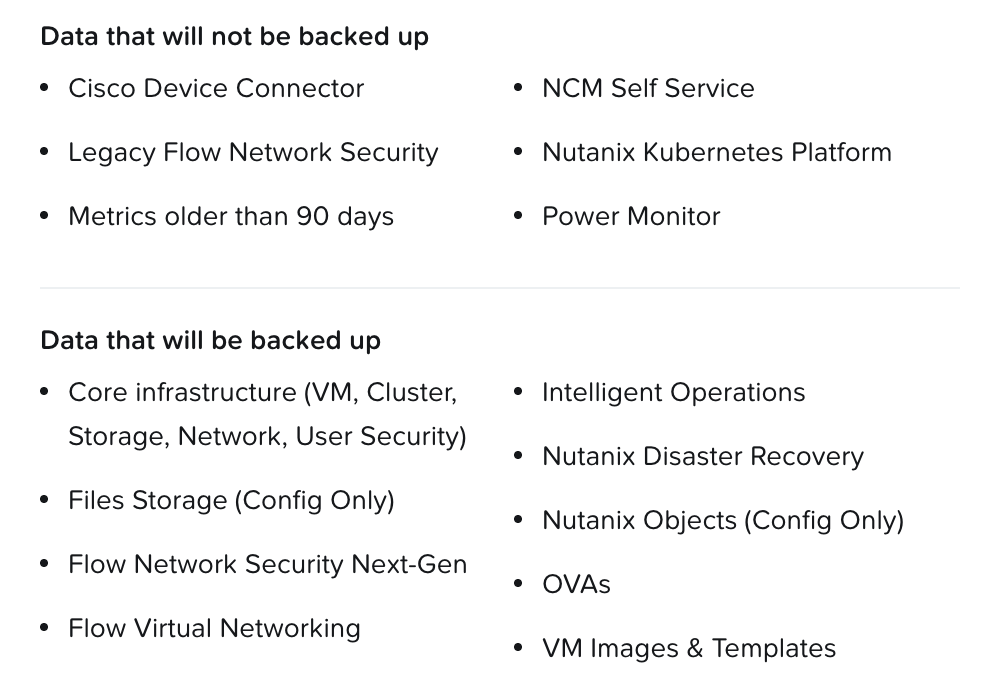
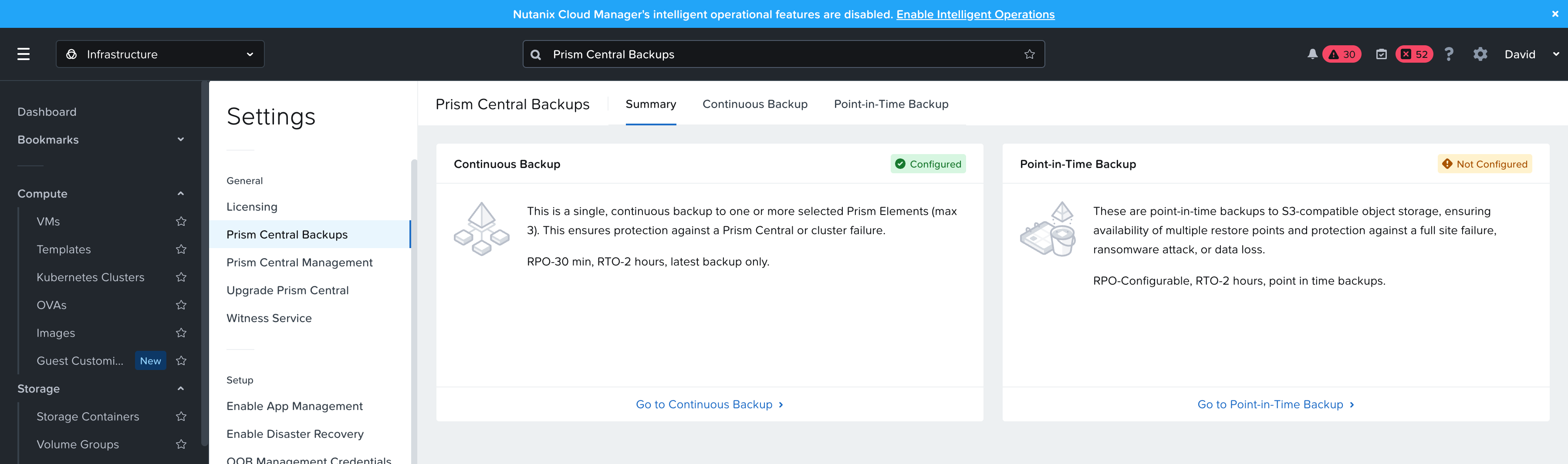
See the below image to see what is included in the backup.
Configure Pure Storage FlashBlade
There are a few items that need to be addressed before the bucket can be utilized for backups.
- Prism Central must be able to reach the FlashBlade Data VIP over port 443.
- FlashBlade must have a valid certificate for the Data VIP. Self-signed certificates are supported, but require you to download it and then upload it to Prism Central.
- The bucket must support object lock and lifecycle policies of 31 days.
Now that we have gotten the requirements out of the way lets start the configuration.
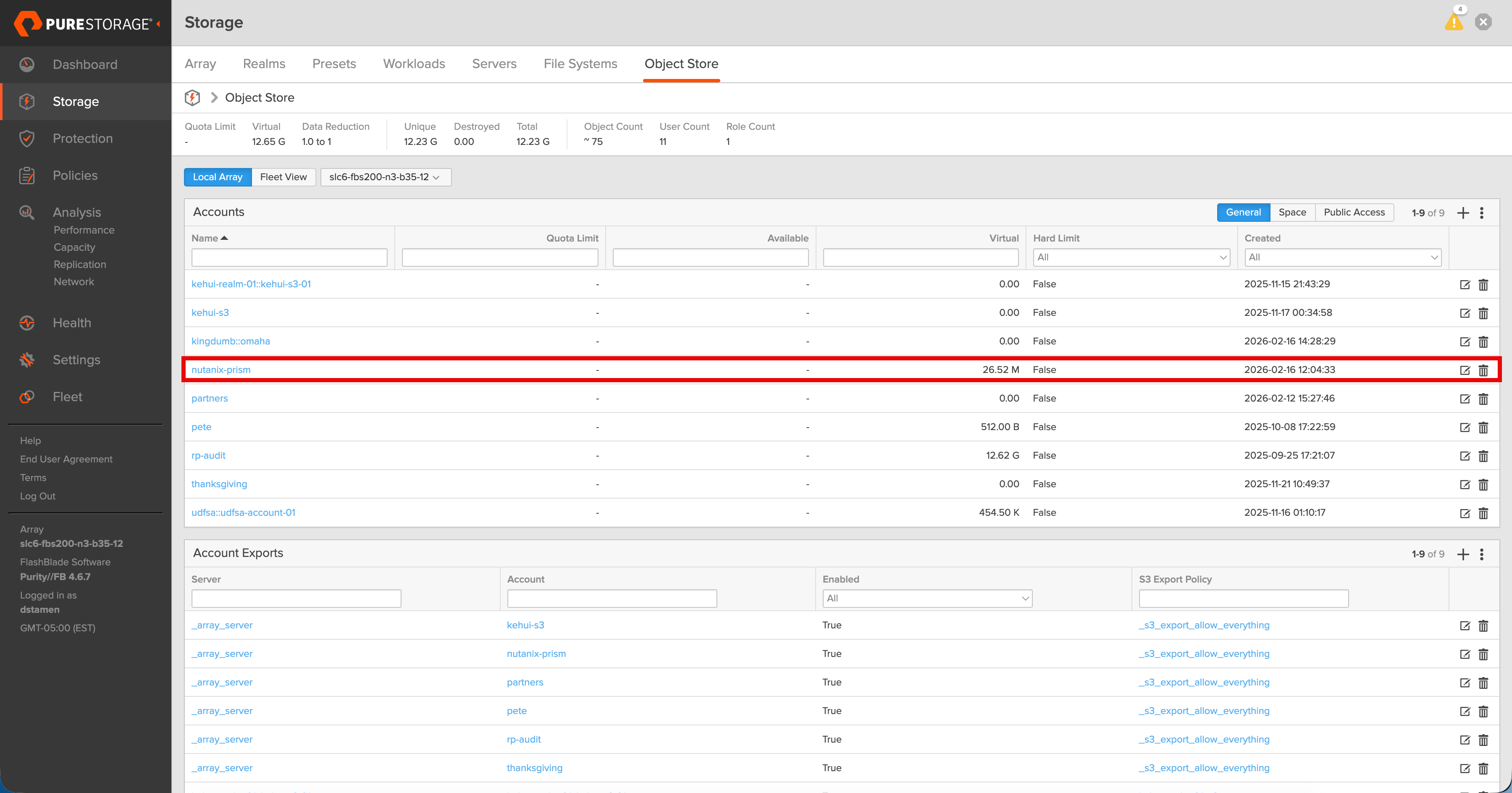
- Navigate to Storage -> Object Store and Create an Account.
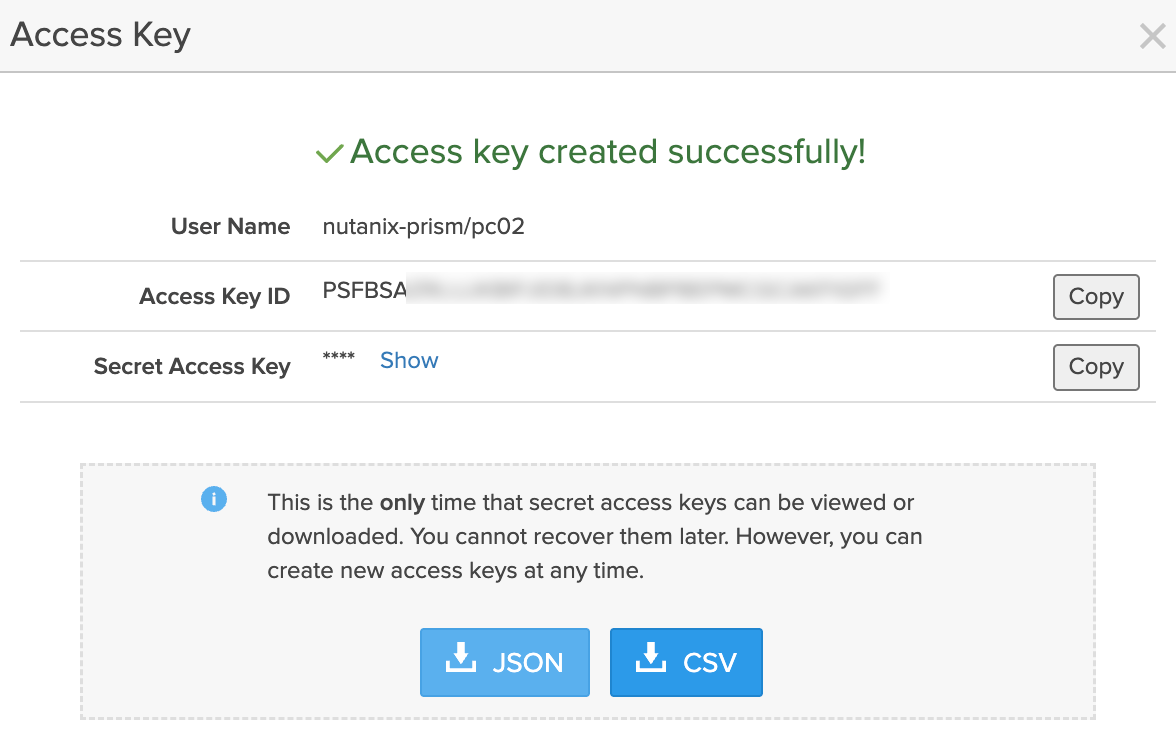
- Create a User, apply a policy such as pure:policy/full-access and generate a new key.
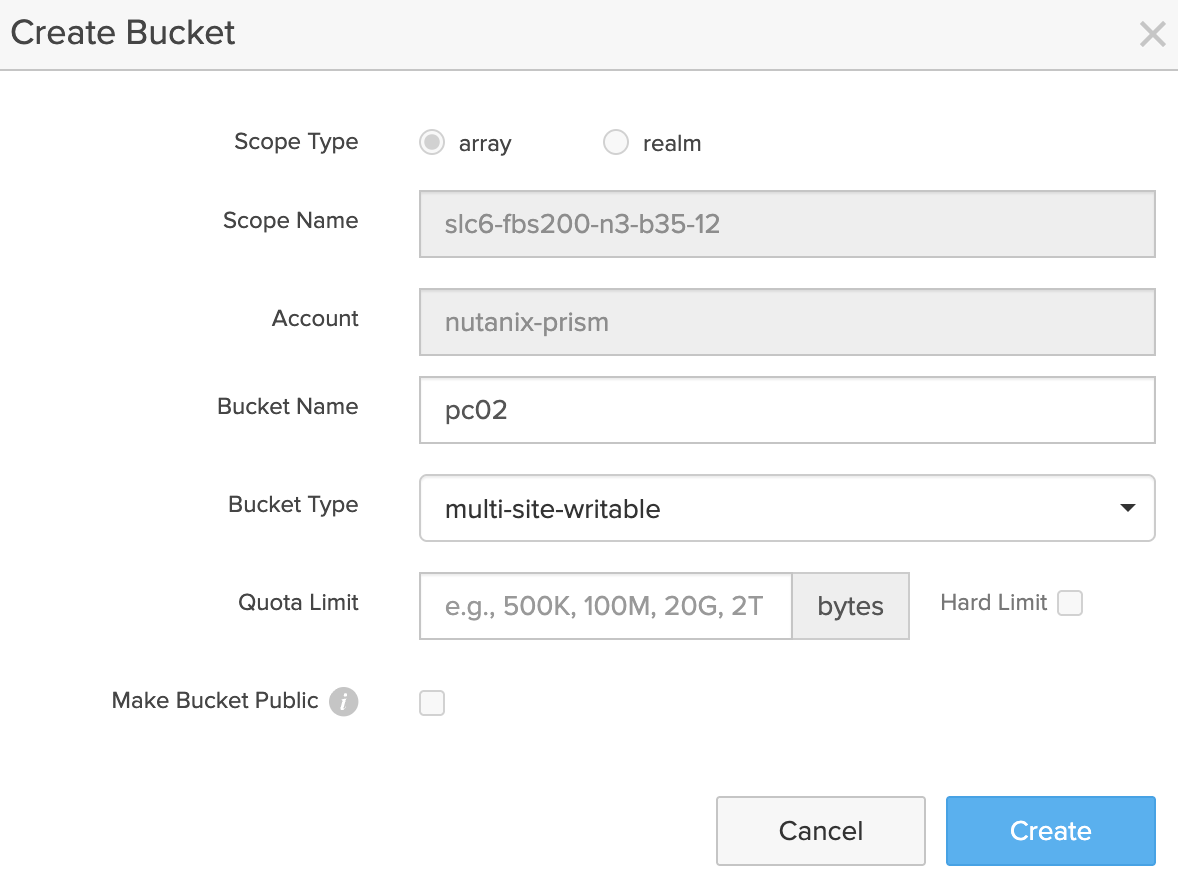
- Create a bucket, in this case quotas are optional
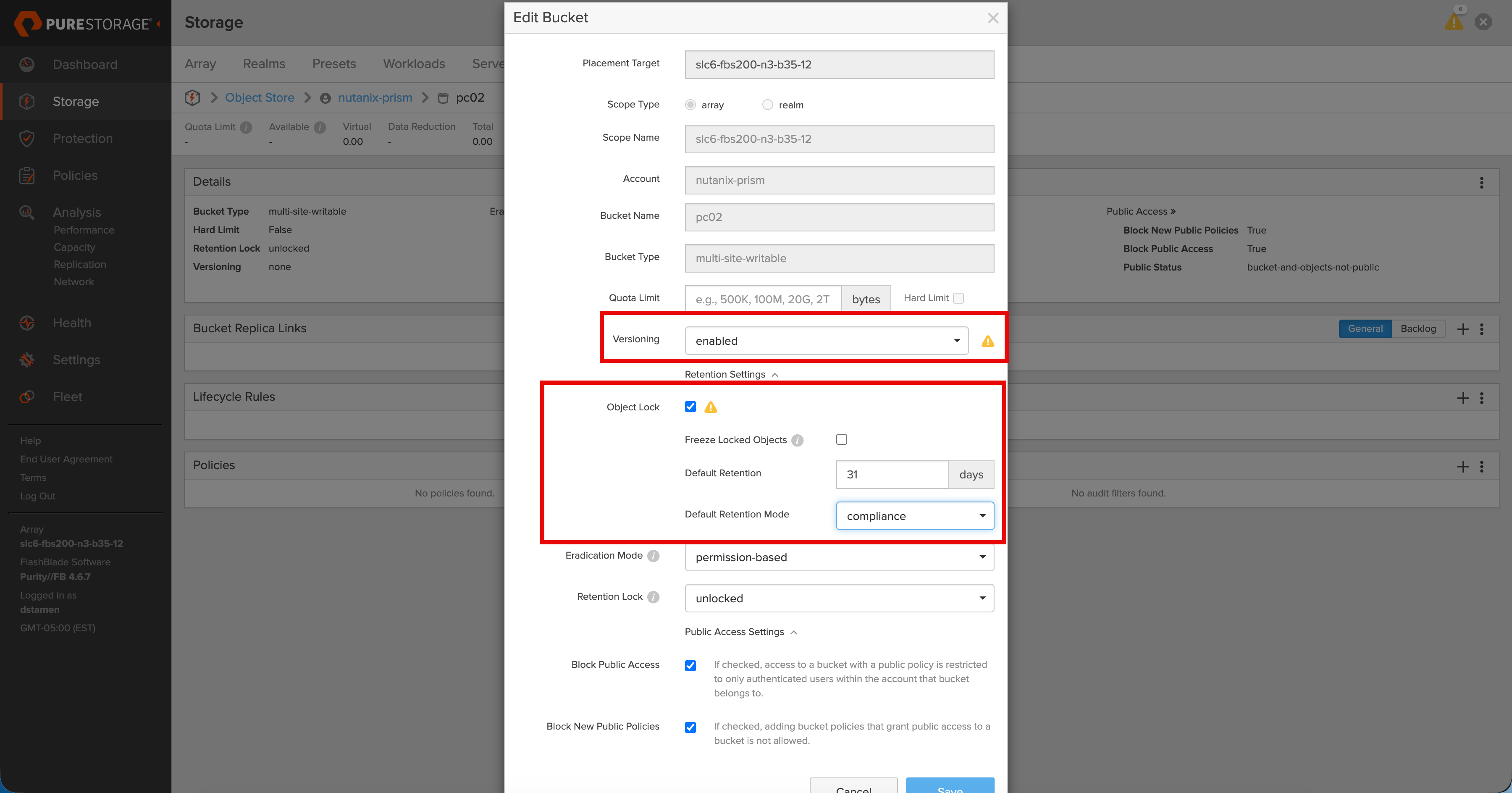
- Edit the bucket Details and ensure that Versioning is Enabled, Object Lock is Enabled, has a default retention mode and is set to 31 days
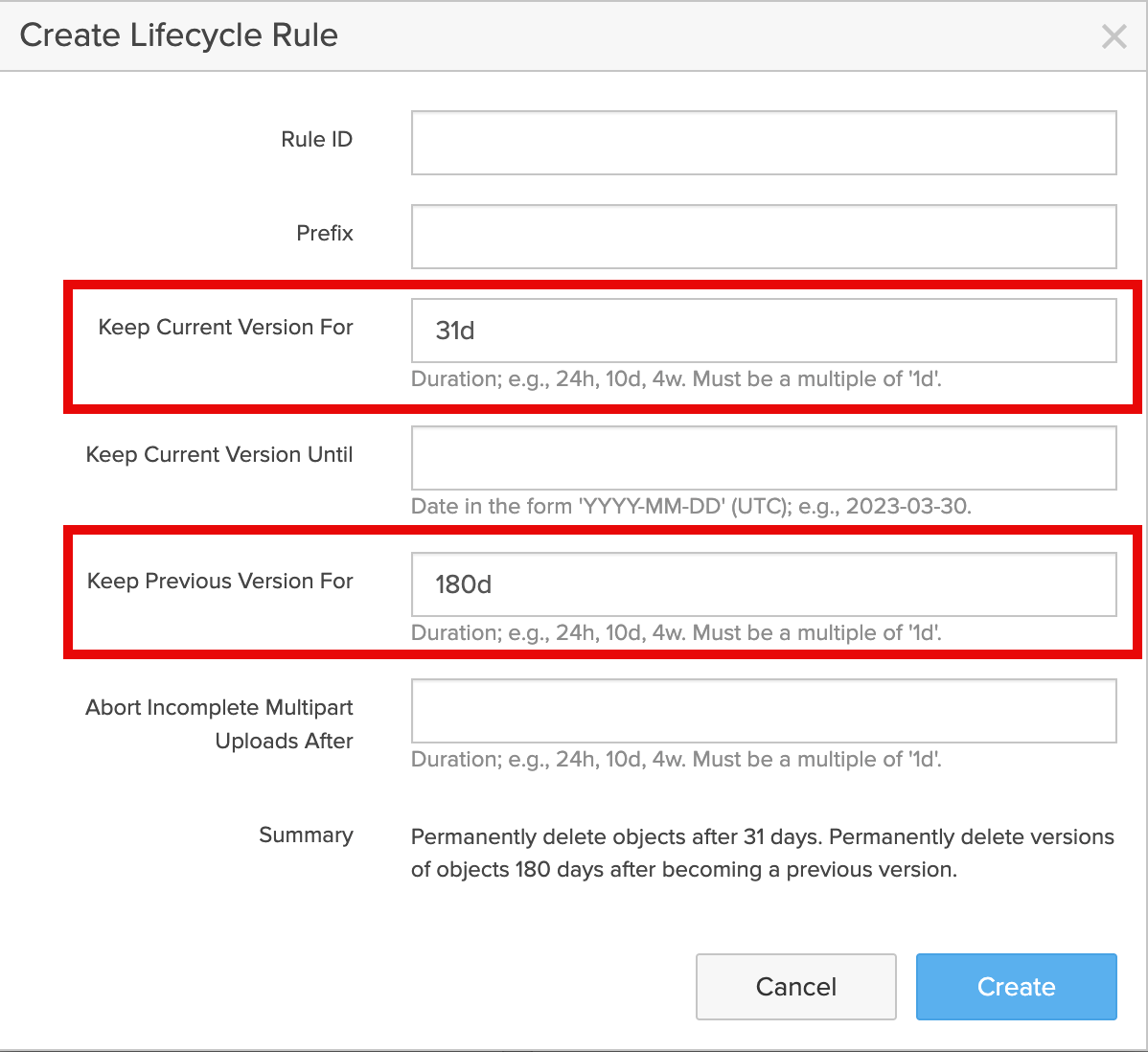
- Create a new Lifecycle Rule making sure to keep the current version for 31 Days the previous version is user configurable, feel free to also set the (Optional) rule ID and Prefix.
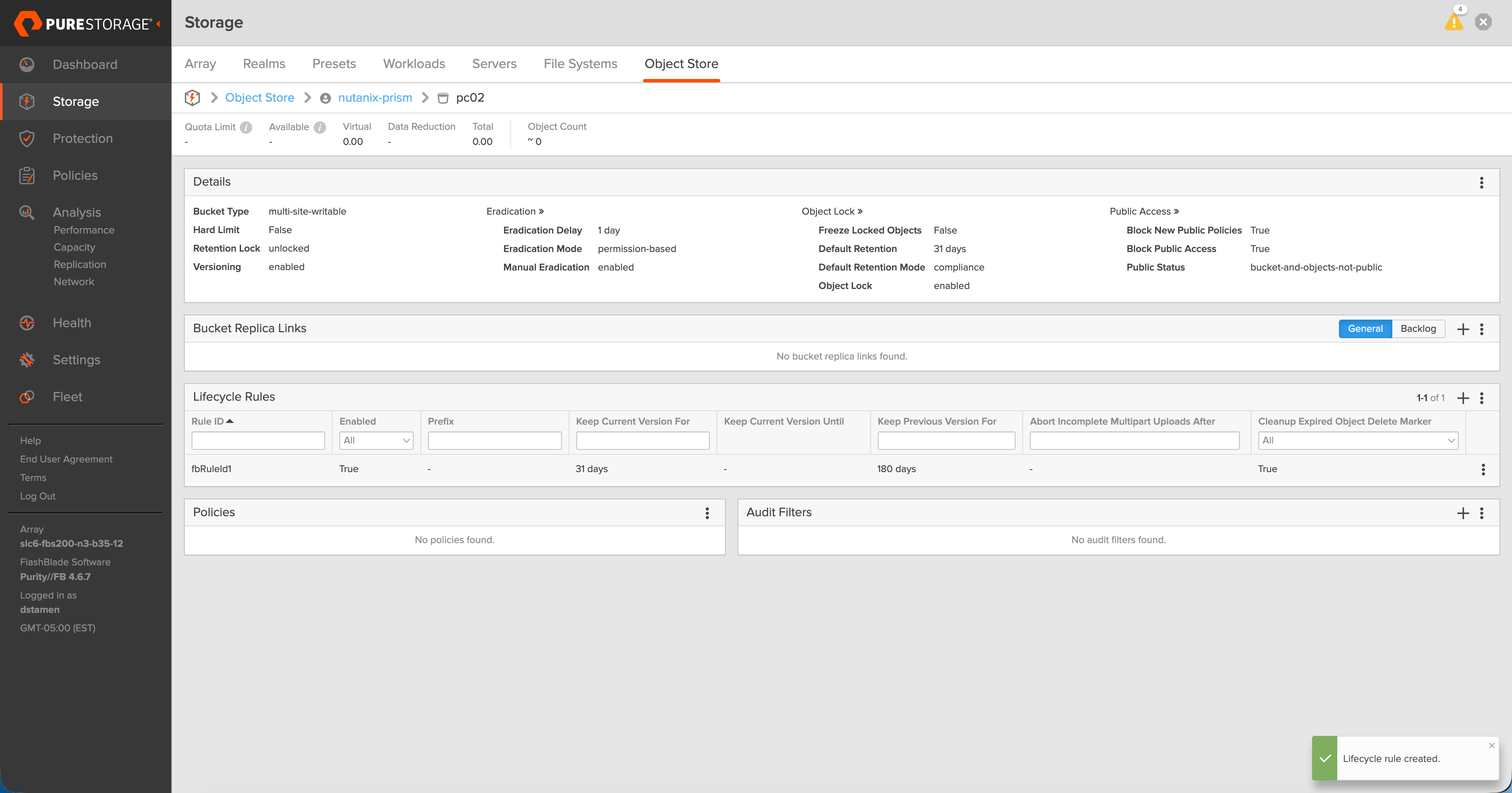
- Verify the configuration of the bucket
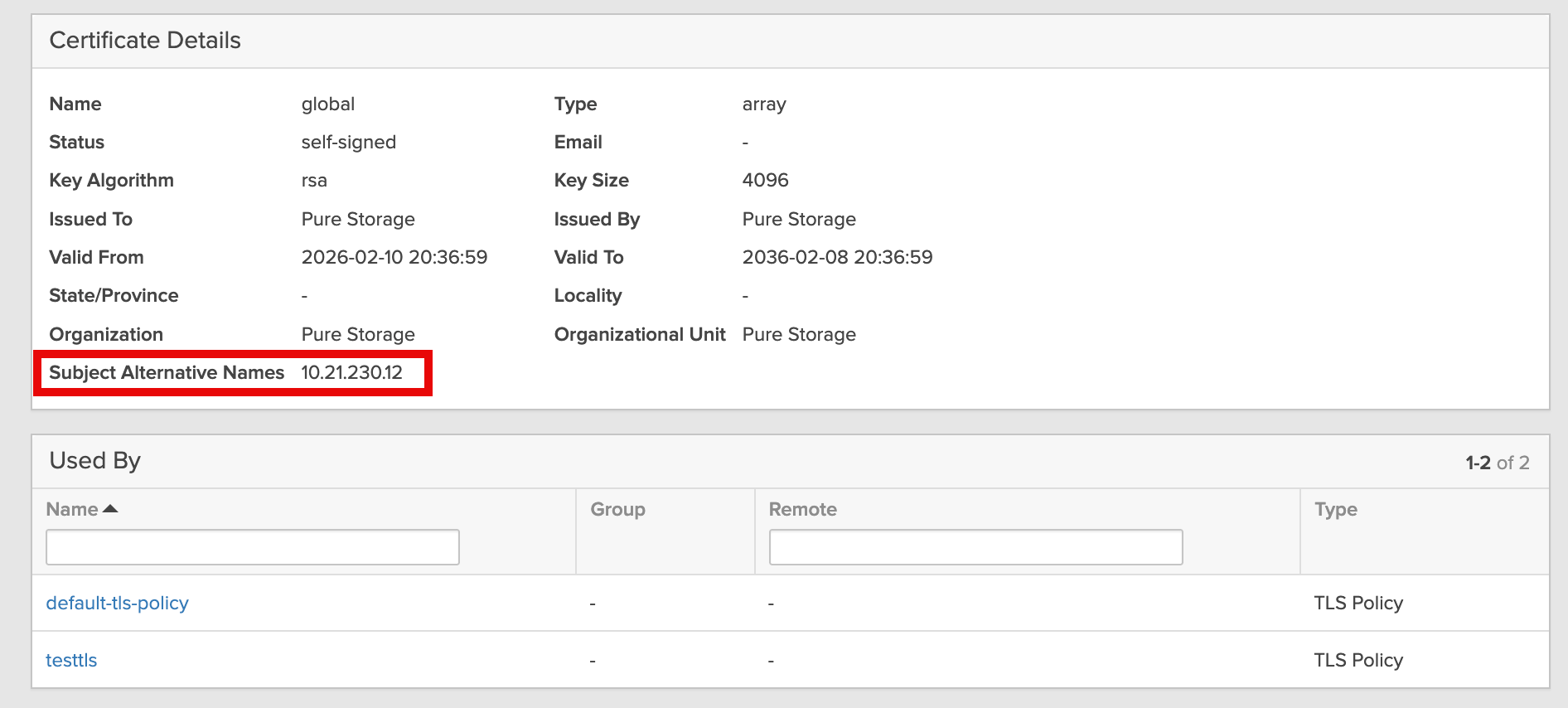
- Lastly, navigate to Settings -> Certificates and ensure the certificate is either self-signed or external and the subject alternate name includes the data VIP (IP or FQDN) you are planning to use. If it is self-signed you can export it now and save it locally. If it is external make sure to have the root cert downloaded.
Configure Prism Central Point-in-Time Backup
- Navigate to Prism Central -> Gear in Top Right -> Prism Central Backups
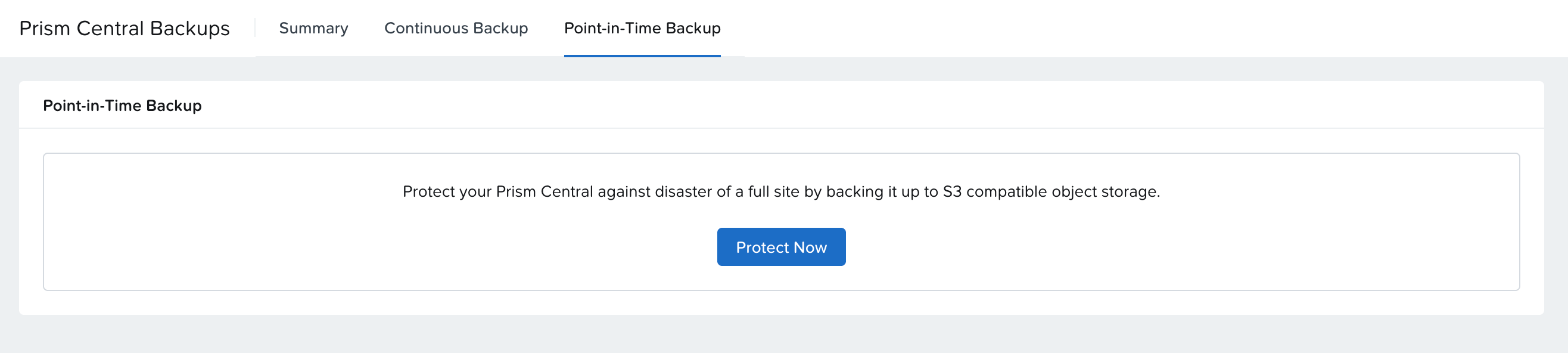
- Go to Point-in-Time Backups and click on Protect Now
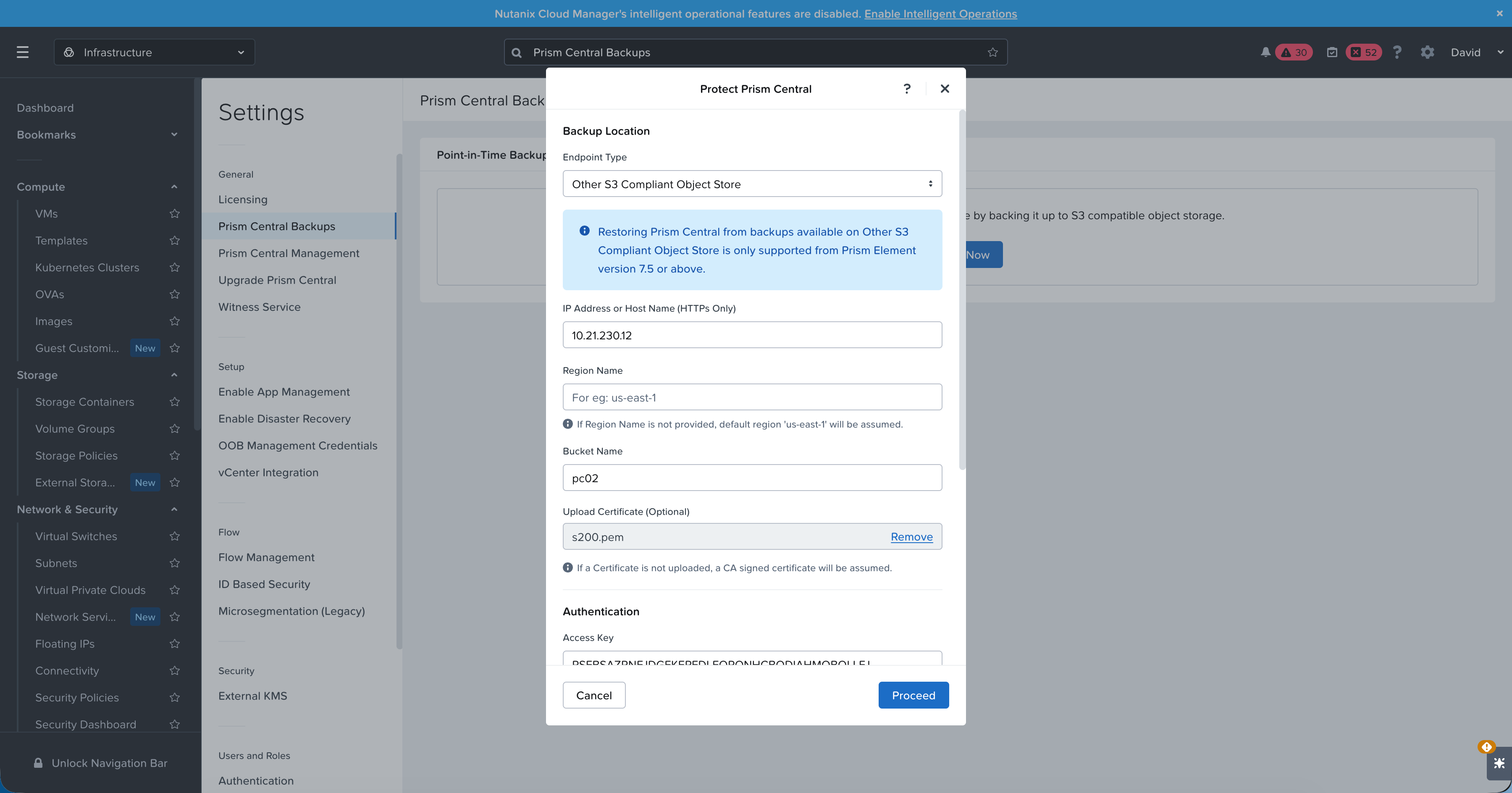
- Change the endpoint type to Other S3 Compliant Object Store and fill in the required fields. If your certificate is self-signed, upload the certificate you downloaded earlier, if not upload the root certificate. Click Proceed to complete the configuration.
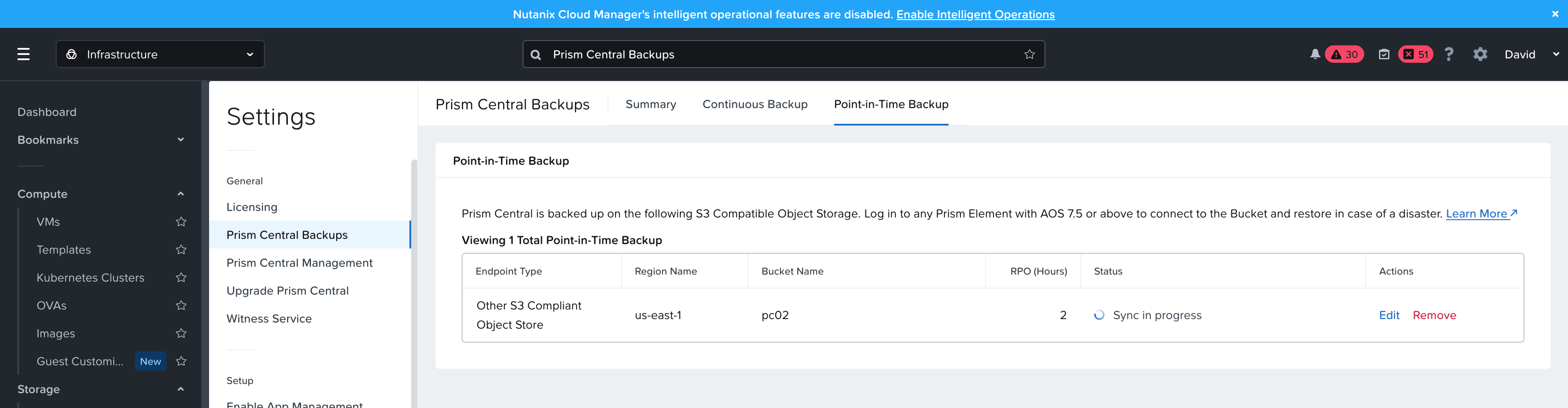
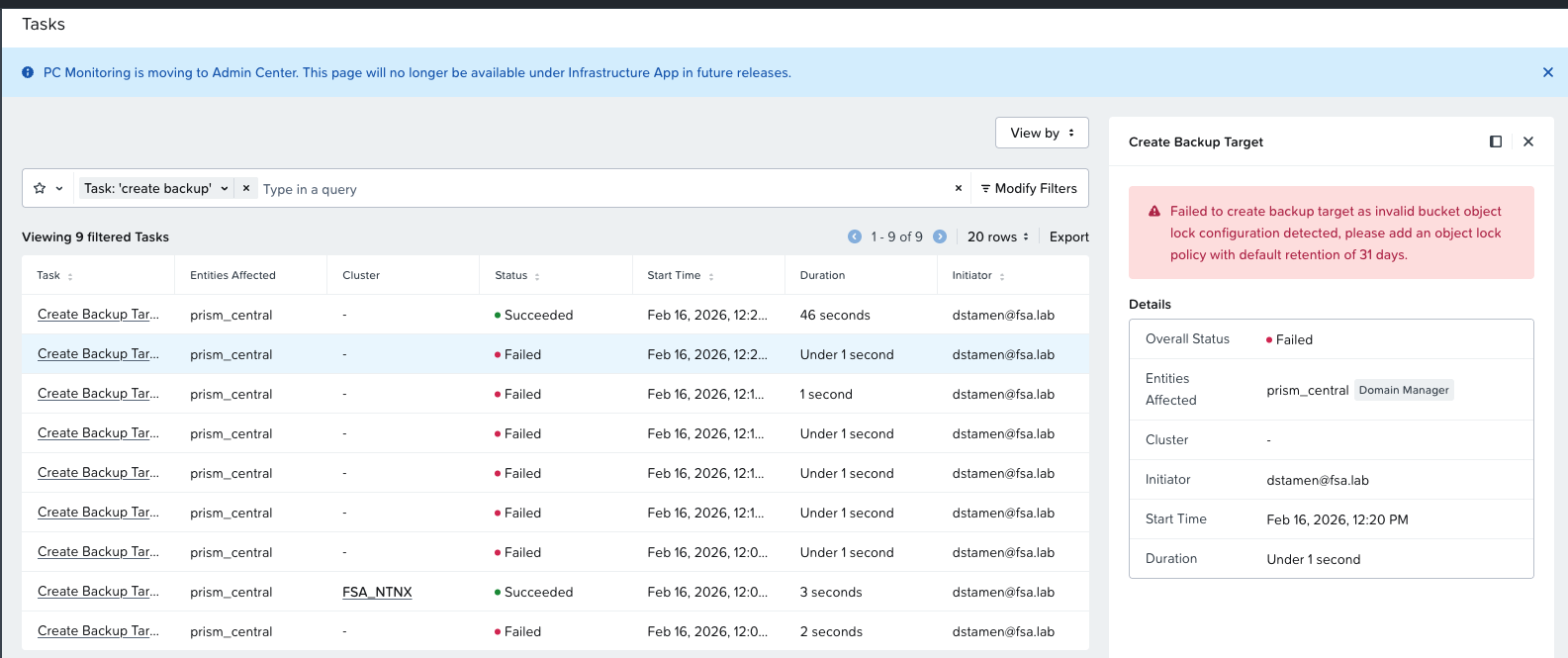
- If everything was configured correctly, the backup should start and you should see Sync in Progress. If the configuration errored, the task will have detailed information on what needs to be modified.
Conclusion
That’s it! By integrating Pure Storage FlashBlade with Nutanix Prism Central’s point-in-time backup capability, you now have a powerful, scalable solution for protecting your infrastructure. FlashBlade’s S3-compliant interface, combined with object lock and lifecycle policies, ensures your backups are secure, compliant, and cost-effective for long-term retention.
If you have questions or feedback, feel free to leave a comment below!
comments powered by Disqus